How to integrate Request Tracker (RT) MCP with Hermes

Hermes is a 24/7 autonomous agent that lives on your computer or server — it remembers what it learns and evolves as your usage grows. This guide explains the easiest and most robust way to connect your Request Tracker (RT) account to Hermes. You can do this through either Composio Connect CLI or Composio Connect MCP. For personal use we recommend the CLI, but you won't go wrong with MCP either.

Request Tracker (RT) logoRequest Tracker (RT)
Api Key

Request Tracker (RT) is a ticketing and workflow platform for managing support requests, queues, users, assets, and knowledge articles. It helps support and operations teams track work, enforce process, and keep request history in one place.

11 Tools

Introduction

Hermes is a 24/7 autonomous agent that lives on your computer or server — it remembers what it learns and evolves as your usage grows.

This guide explains the easiest and most robust way to connect your Request Tracker (RT) account to Hermes. You can do this through either Composio Connect CLI or Composio Connect MCP. For personal use we recommend the CLI, but you won't go wrong with MCP either.

Also integrate Request Tracker (RT) with

What is Composio Connect?

Composio Connect is a consumer offering that lets anyone plug 1,000+ applications directly into their agent harness — including Hermes. It can:

  • Search and load tools from relevant toolkits on-demand, reducing context usage.
  • Chain multiple tools to accomplish complex workflows via a remote workbench, without excessive back-and-forth with the LLM.
  • Manage app authentication end-to-end with zero manual overhead.

Integrating Request Tracker (RT) with Hermes

Using Composio Connect CLI

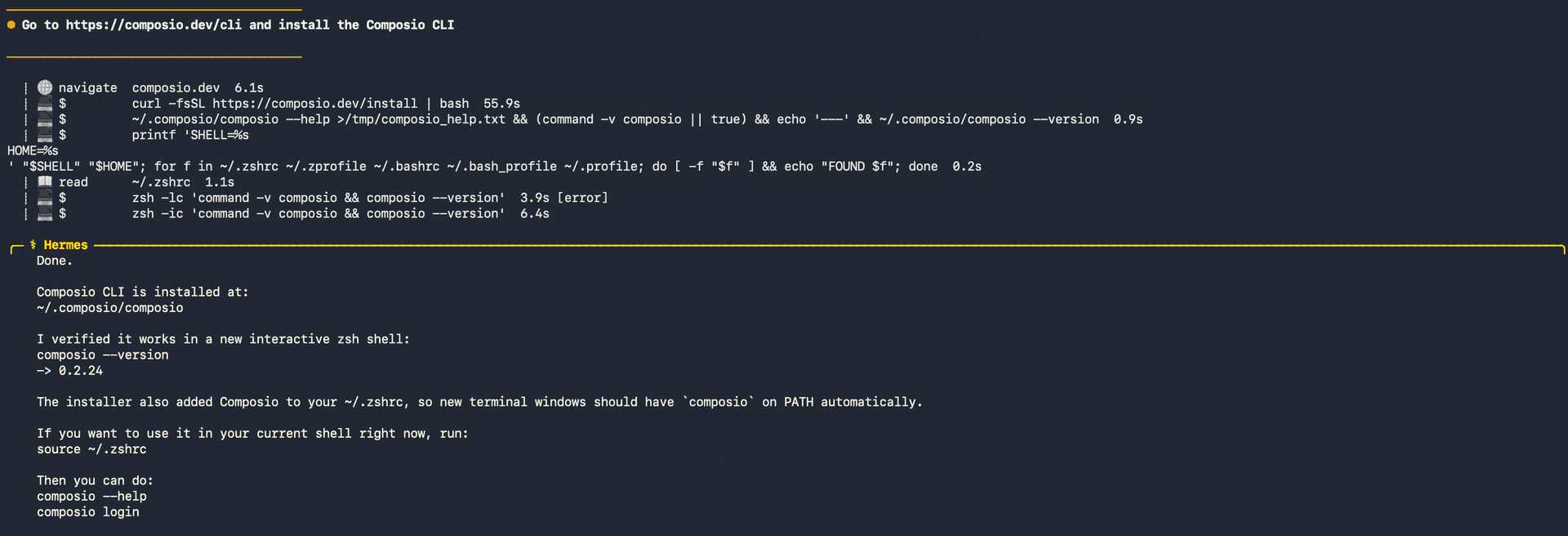
1. Install the Composio CLI

Run the install script directly, or paste https://composio.dev/hermes into your Hermes chat box to have it installed for you.

bash
curl -fsSL https://composio.dev/install | bash
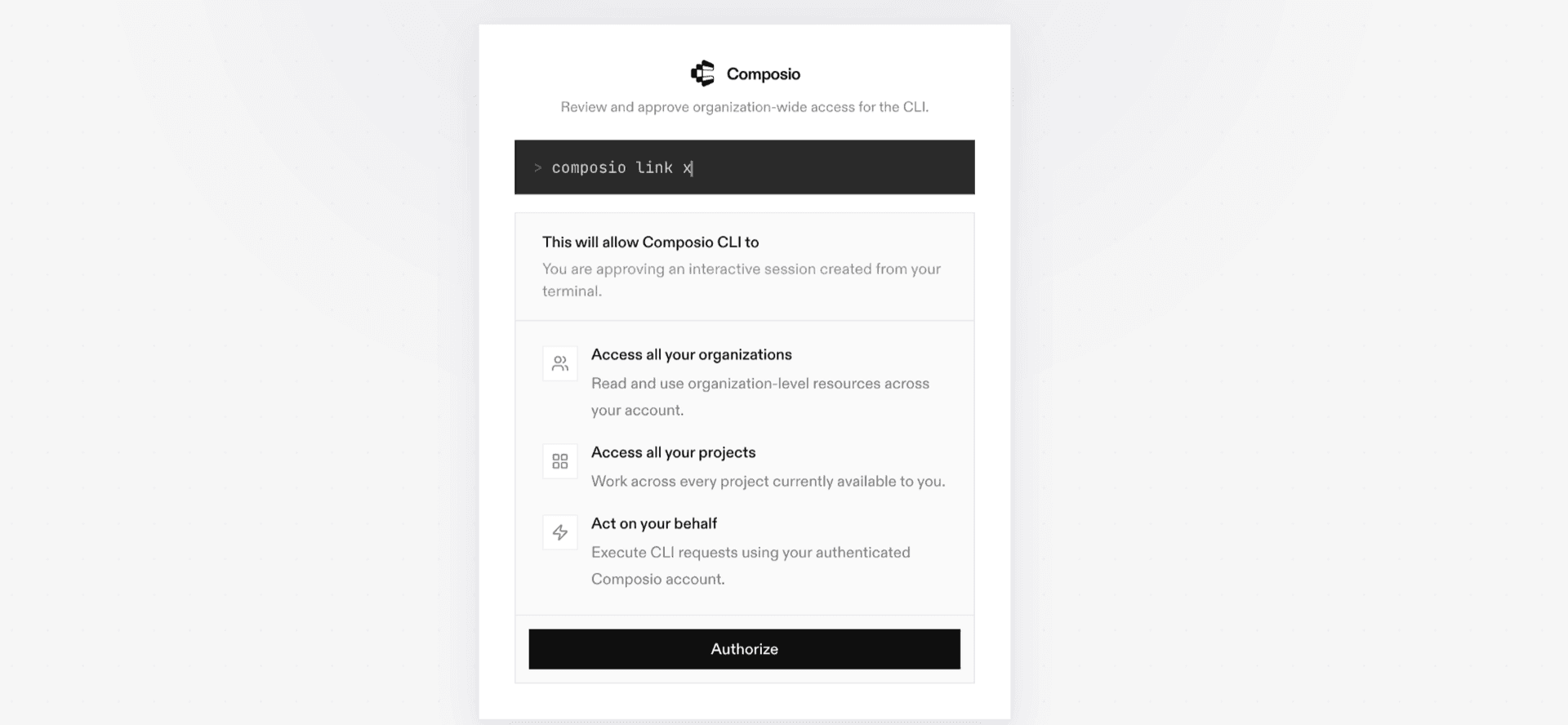
Hermes authenticating with Composio

2. Authenticate

Once the CLI is installed, ask Hermes to authenticate with Composio.

3. Connect to Request Tracker (RT)

Ask your agent to connect to Request Tracker (RT), or simply request any Request Tracker (RT)-related task. Hermes will prompt you to authenticate and authorize access.

4. Done. You're all set with a new Request Tracker (RT) connection.


Using Composio Connect MCP

1. Get your MCP URL and API Key

Go to dashboard.composio.dev and copy your Connect MCP URL and API key.

Copy MCP URL and API key from Composio dashboard

2. Open the Hermes config file

bash
nano ~/.hermes/config.yaml

3. Add the Composio Connect MCP server

bash
mcp_servers:
  composio:
    url: "https://connect.composio.dev/mcp"
    headers:
      x-consumer-api-key: "YOUR_COMPOSIO_API_KEY"
    connect_timeout: 60
    timeout: 180

Save with Ctrl + O, Enter, then exit with Ctrl + X.

4. Restart your Hermes agent

Once restarted, ask your agent to connect to Request Tracker (RT) or request any Request Tracker (RT)-related task. It will prompt you to authenticate and authorize access.

5. Done!

What is the Request Tracker (RT) MCP server, and what's possible with it?

The Request Tracker (RT) MCP server is an implementation of the Model Context Protocol that connects your AI agent and assistants like Claude, Cursor, etc directly to your Request Tracker (RT) account. It provides structured and secure access to your tickets, queues, users, ticket histories, and attachment details, so your agent can search, create, review, update, and respond to tickets on your behalf.

  • Ticket search and review: Have your agent find tickets using specific criteria and retrieve their current details for quick review.
  • Ticket creation and updates: Direct your agent to create tickets in the right queue or update selected ticket details as work progresses.
  • Replies and internal comments: Let the agent send public replies to requesters or add private comments for your support team.
  • Queue and user lookup: Instruct your agent to browse available queues and find users when choosing ticket requesters or owners.
  • History and attachment review: Have your agent review ticket activity, field changes, comments, timestamps, and available attachment details.

Way Forward

With Request Tracker (RT) connected, Hermes can now act on your behalf whenever it detects a relevant task or you ask it to.

From here, you can extend Hermes further:

  • Connect more apps: Calendar, Slack, Notion, Linear, and hundreds of others are available through the same Composio Connect setup. Each new integration compounds what Hermes can do for you.
  • Build workflows across tools: Once multiple apps are connected, Hermes can chain actions together — turn an email into a calendar invite, a Slack message into a Linear ticket, or a meeting note into a follow-up draft.
  • Let it learn your patterns: The more you use Hermes, the better it gets at anticipating how you'd handle recurring tasks. Give it feedback on drafts and decisions, and it will adapt.

If you run into trouble or want to share what you've built, join the community or check out the Docs for deeper configuration options.

TOOLS

Supported Tools

Every Request Tracker (RT) action and event your agent gets out of the box.

Add Ticket Comment

Add a private internal comment to an RT ticket.

Create Ticket

Create a durable RT ticket in a queue.

Get Queue

Retrieve one visible RT queue by id or exact name, including lifecycle and capability-sensitive links.

Get Ticket

Retrieve one visible RT ticket, including its current fields and capability-sensitive links for allowed follow-up operations.

Get Ticket History

Return one page of detailed ticket history, including transaction types, field changes, comments, creators, and timestamps.

List Queues

List queues visible to the connected RT user so an agent can select a queue for ticket search or creation.

List Ticket Attachments

List attachment metadata references associated with a visible RT ticket without downloading attachment content.

Reply to Ticket

Send public correspondence on an RT ticket.

Search Tickets

Search visible RT tickets with an explicit TicketSQL expression and return one bounded page.

Search Users

Search RT users with structured field conditions and return one bounded page of user references or selected fields for requester and owner lookup.

Update Ticket

Update selected metadata on an existing RT ticket and verify every requested field by reading it back.

FAQ

Frequently asked questions

With a standalone Request Tracker (RT) MCP server, the agents and LLMs can only access a fixed set of Request Tracker (RT) tools tied to that server. However, with the Composio Tool Router, agents can dynamically load tools from Request Tracker (RT) and many other apps based on the task at hand, all through a single MCP endpoint.

Yes, you can. Hermes fully supports MCP integration. You get structured tool calling, message history handling, and model orchestration while Tool Router takes care of discovering and serving the right Request Tracker (RT) tools.

Yes, absolutely. You can configure which Request Tracker (RT) scopes and actions are allowed when connecting your account to Composio. You can also bring your own OAuth credentials or API configuration so you keep full control over what the agent can do.

All sensitive data such as tokens, keys, and configuration is fully encrypted at rest and in transit. Composio is SOC 2 Type 2 compliant and follows strict security practices so your Request Tracker (RT) data and credentials are handled as safely as possible.

Start with Request Tracker (RT).It takes 30 seconds.

Managed auth, hosted MCP servers, and every Request Tracker (RT) tool your agent needs.Free to start.

Start building