

How to connect PocketSmith to Claude Cowork

Cowork is Anthropic's AI agent for knowledge work. Think of it as Claude Code for everything else. It works autonomously with your computer, local files, and applications to accomplish complex tasks. This guide walks you through the easiest and most secure way to connect your PocketSmith account to Cowork via Composio Connect, enabling it to summarize spending by category this month, list recent transactions over two hundred, compare budget forecast against actual spending, and more such actions on your behalf without compromising your account security.
PocketSmith logoPocketSmith
Api Key

PocketSmith is a personal finance platform for accounts, transactions, budgets, and cash-flow forecasts. Use it to understand spending, plan ahead, and make better money decisions.

14 Tools

Introduction

Cowork is Anthropic's AI agent for knowledge work. Think of it as Claude Code for everything else. It works autonomously with your computer, local files, and applications to accomplish complex tasks.

This guide walks you through the easiest and most secure way to connect your PocketSmith account to Cowork via Composio Connect, enabling it to summarize spending by category this month, list recent transactions over two hundred, compare budget forecast against actual spending, and more such actions on your behalf without compromising your account security.
Also integrate PocketSmith with

Connecting PocketSmith to Claude Cowork

1. Open Customize

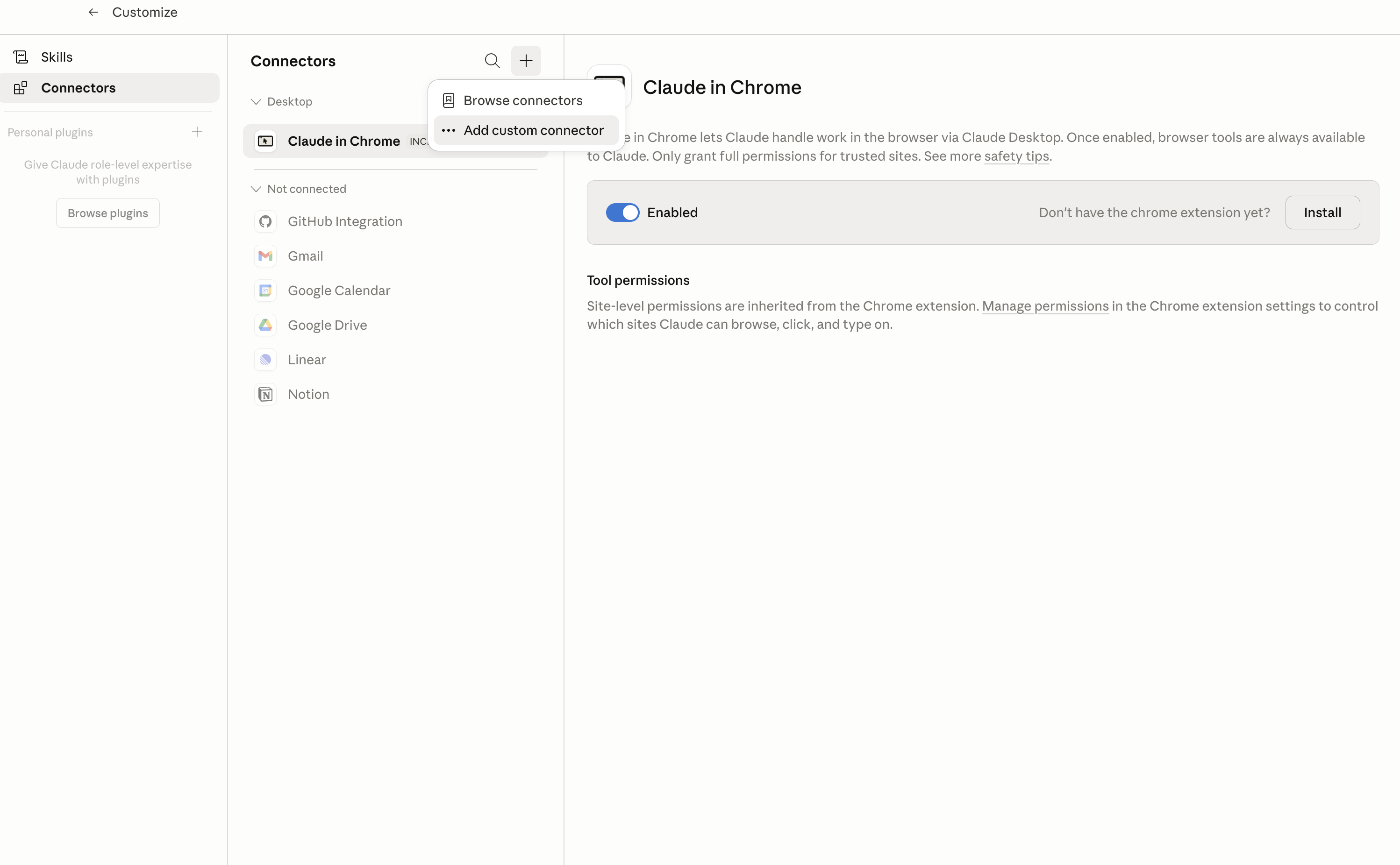
In Claude Desktop, click Customize in the left sidebar, then select Connectors and click the + icon at the top.

Claude Desktop connectors screen with Add custom connector selected

2. Add the Composio MCP server

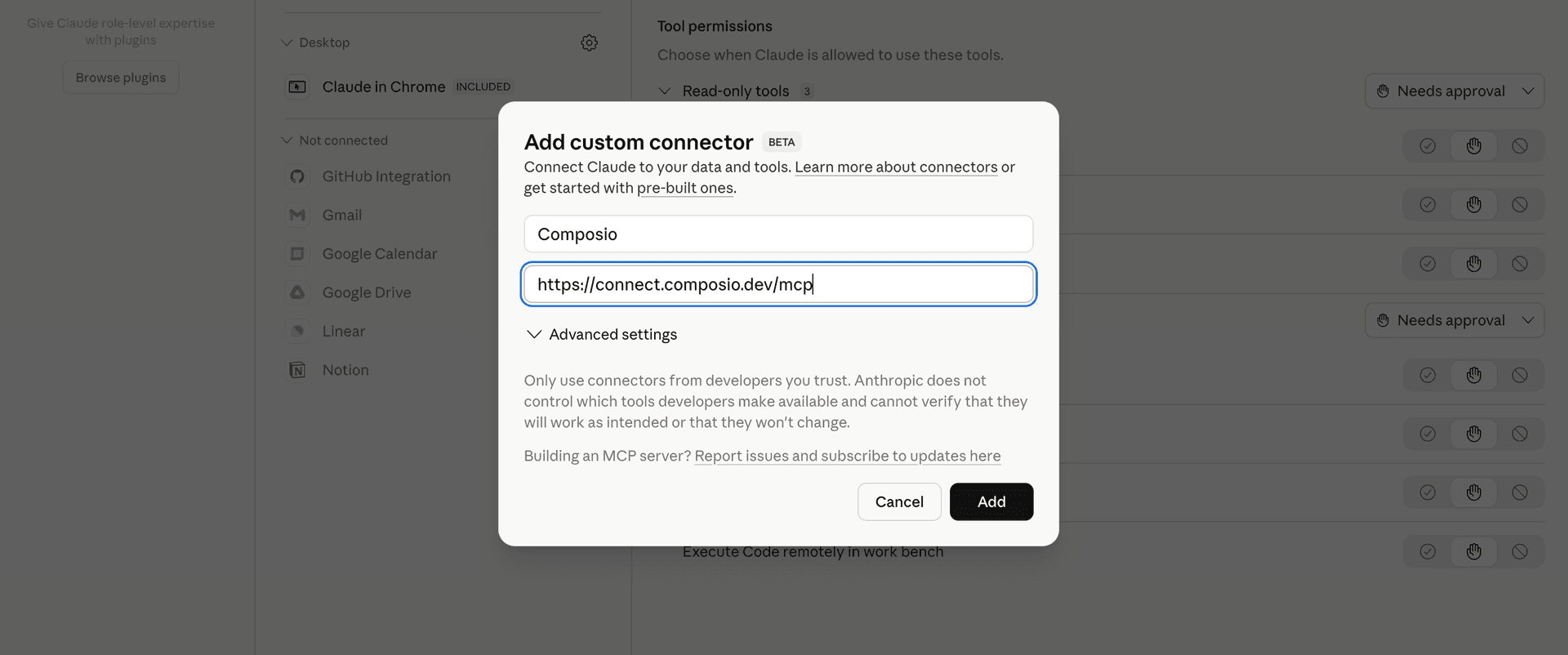
Click Add custom connector and paste in the Composio MCP server URL:

bash
https://connect.composio.dev/mcp
Add custom connector dialog with Composio MCP server URL

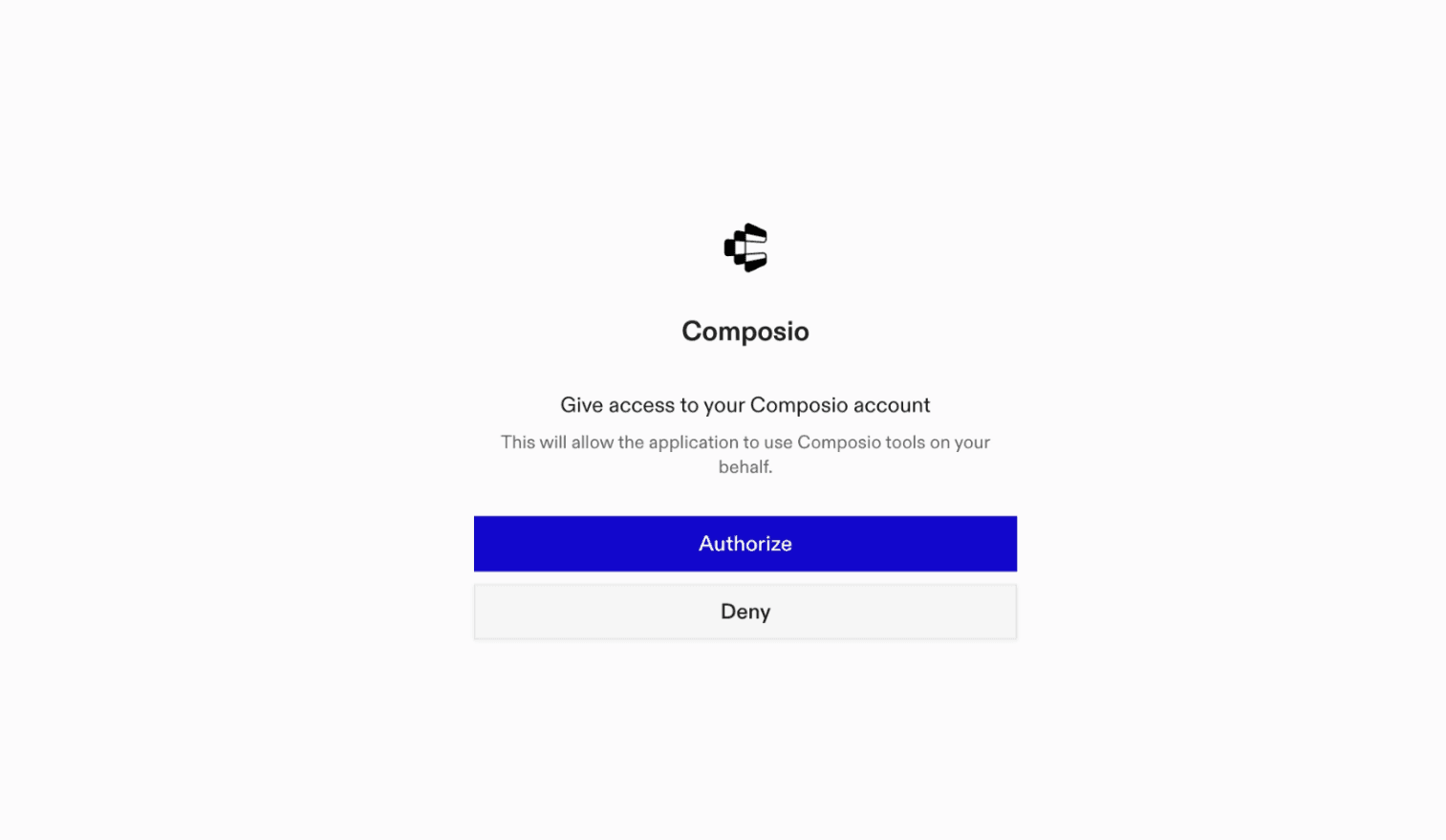
3. Authorize in your browser

Click Connect. You'll be redirected to a browser window where you can authorize Composio to continue.

Composio authorization screen for Claude Cowork

4. Connect your PocketSmith account

Back in Cowork, ask the agent to connect to PocketSmith or give it any PocketSmith-related task.

For example, ask Cowork to:

  • "Summarize spending by category this month"
  • "List recent transactions over two hundred"
  • "Compare budget forecast against actual spending"

It will prompt you to authenticate and authorize access.

That's it. Composio's tools are now available in Cowork, and your PocketSmith account is ready to use.

What is Claude Cowork?

Claude Cowork is Anthropic's agent for general knowledge work. It can use your computer, files, and connected applications to complete longer-running tasks across your work tools.

With Composio Connect, Cowork can securely access apps like PocketSmith through MCP without you sharing account credentials directly with the agent.

What is the PocketSmith MCP server, and what's possible with it?

The PocketSmith MCP server is an implementation of the Model Context Protocol that connects your AI agent and assistants like Claude, Cursor, etc directly to your PocketSmith account. It provides structured and secure access to your accounts, transactions, categories, and budgets, so your agent can review spending, record transactions, organize finances, update account details, and analyze budgets on your behalf.

  • Account and balance overview: Have your agent list your financial and transaction accounts, check their balances, and gather the details needed to manage your finances.
  • Transaction tracking and updates: Let the agent find transactions by date, state, type, or keyword, review individual records, create new transactions, and update existing ones.
  • Spending categorization: Direct your agent to list, create, and update categories, including category hierarchy and budgeting behavior.
  • Budget analysis: Instruct your agent to review current category-level actual and forecast budgets or summarize income and expenses across a chosen date range and interval.
  • Account organization: Have your agent update selected details on your financial accounts while leaving balances and transactions unchanged.
TOOLS

Supported Tools

Every PocketSmith action and event your agent gets out of the box.

Create Category

Create one category for a PocketSmith user with optional hierarchy and budgeting behavior.

Create Transaction

Create one transaction in a specified transaction account and return the created financial record.

Get Budget

Return a PocketSmith user's current category-level actual and forecast budget analysis.

Get Budget Summary

Analyze the user's combined income and expense budget over a required date range and period interval.

Get Current User

Return the PocketSmith user authorized by the connected developer key, including the user ID needed by user-scoped tools.

Get Transaction

Return one PocketSmith transaction by ID with its amount, date, payee, category, labels, and review state.

List Accounts

Return all financial accounts belonging to a PocketSmith user, including account, primary transaction-account, and scenario IDs.

List Categories

Return all categories belonging to a PocketSmith user, including hierarchy and budgeting flags.

List Transaction Accounts

Return the transaction accounts belonging to a PocketSmith user, including IDs and balances needed to create and query transactions.

List Transactions

Return one page of a user's transactions with optional date, state, type, and keyword filters, plus a cursor for the next page.

Update Account

Update selected metadata on one financial account without deleting it or changing transaction-account balances.

Update Category

Update selected hierarchy, display, and budgeting fields on one category without deleting it.

Update Transaction

Update selected fields on one existing transaction without deleting or splitting it.

Update Transactions

Update 1-20 distinct transactions sequentially.

FAQ

Frequently asked questions

With a standalone PocketSmith MCP server, the agents and LLMs can only access a fixed set of PocketSmith tools tied to that server. However, with the Composio Tool Router, agents can dynamically load tools from PocketSmith and many other apps based on the task at hand, all through a single MCP endpoint.

Yes, you can. Claude Cowork fully supports MCP integration. You get structured tool calling, message history handling, and model orchestration while Tool Router takes care of discovering and serving the right PocketSmith tools.

Yes, absolutely. You can configure which PocketSmith scopes and actions are allowed when connecting your account to Composio. You can also bring your own OAuth credentials or API configuration so you keep full control over what the agent can do.

All sensitive data such as tokens, keys, and configuration is fully encrypted at rest and in transit. Composio is SOC 2 Type 2 compliant and follows strict security practices so your PocketSmith data and credentials are handled as safely as possible.

Start with PocketSmith.It takes 30 seconds.

Managed auth, hosted MCP servers, and every PocketSmith tool your agent needs.Free to start.

Start building