


How to integrate Finerworks MCP with Hermes

Hermes is a 24/7 autonomous agent that lives on your computer or server — it remembers what it learns and evolves as your usage grows. This guide explains the easiest and most robust way to connect your Finerworks account to Hermes. You can do this through either Composio Connect CLI or Composio Connect MCP. For personal use we recommend the CLI, but you won't go wrong with MCP either.
Finerworks logoFinerworks
Api Key

FinerWorks is an online platform for fine art and photo printing services. Artists and photographers use it to order custom prints and manage print inventory efficiently.

33 Tools

Introduction

Hermes is a 24/7 autonomous agent that lives on your computer or server — it remembers what it learns and evolves as your usage grows.

This guide explains the easiest and most robust way to connect your Finerworks account to Hermes. You can do this through either Composio Connect CLI or Composio Connect MCP. For personal use we recommend the CLI, but you won't go wrong with MCP either.

Also integrate Finerworks with

What is Composio Connect?

Composio Connect is a consumer offering that lets anyone plug 1,000+ applications directly into their agent harness — including Hermes. It can:

  • Search and load tools from relevant toolkits on-demand, reducing context usage.
  • Chain multiple tools to accomplish complex workflows via a remote workbench, without excessive back-and-forth with the LLM.
  • Manage app authentication end-to-end with zero manual overhead.

Integrating Finerworks with Hermes

Using Composio Connect CLI

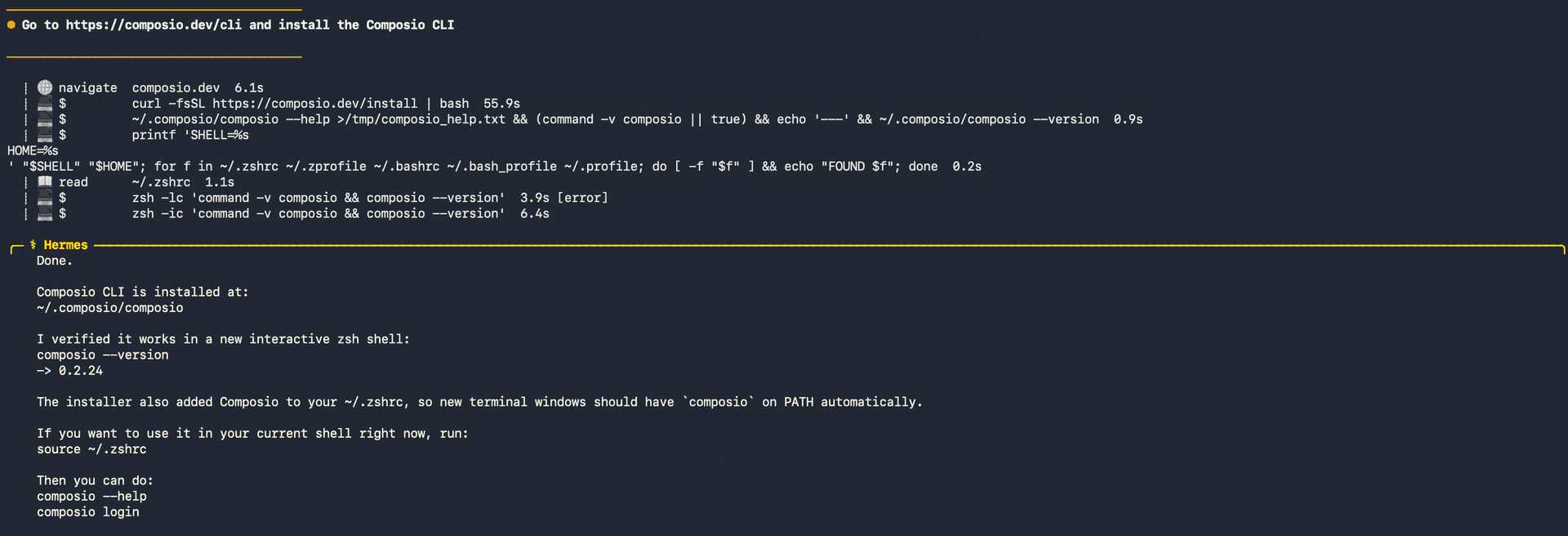
1. Install the Composio CLI

Run the install script directly, or paste https://composio.dev/hermes into your Hermes chat box to have it installed for you.

bash
curl -fsSL https://composio.dev/install | bash
Hermes authenticating with Composio

2. Authenticate

Once the CLI is installed, ask Hermes to authenticate with Composio.

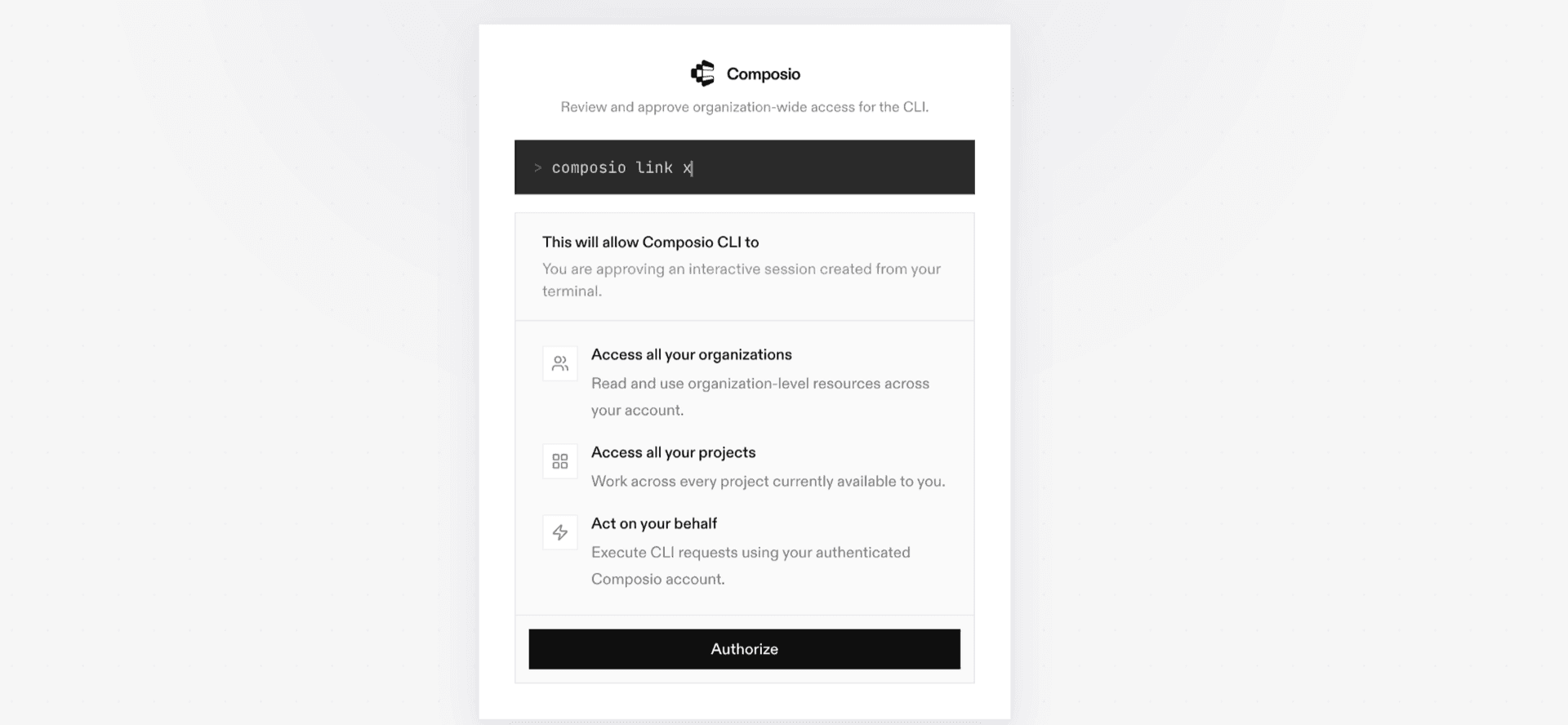
3. Connect to Finerworks

Ask your agent to connect to Finerworks, or simply request any Finerworks-related task. Hermes will prompt you to authenticate and authorize access.

4. Done. You're all set with a new Finerworks connection.


Using Composio Connect MCP

1. Get your MCP URL and API Key

Go to dashboard.composio.dev and copy your Connect MCP URL and API key.

Copy MCP URL and API key from Composio dashboard

2. Open the Hermes config file

bash
nano ~/.hermes/config.yaml

3. Add the Composio Connect MCP server

bash
mcp_servers:
  composio:
    url: "https://connect.composio.dev/mcp"
    headers:
      x-consumer-api-key: "YOUR_COMPOSIO_API_KEY"
    connect_timeout: 60
    timeout: 180

Save with Ctrl + O, Enter, then exit with Ctrl + X.

4. Restart your Hermes agent

Once restarted, ask your agent to connect to Finerworks or request any Finerworks-related task. It will prompt you to authenticate and authorize access.

5. Done!

What is the Finerworks MCP server, and what's possible with it?

The Finerworks MCP server is an implementation of the Model Context Protocol that connects your AI agent and assistants like Claude, Cursor, etc directly to your FinerWorks account. It provides structured and secure access to your fine art and photo printing services, so your agent can perform actions like uploading artwork, managing orders, updating account info, and exploring product options on your behalf.

  • Artwork upload and management: Easily add new images to your FinerWorks library, complete with metadata and image URIs, so your inventory is always up to date.
  • Order submission and tracking: Ask your agent to submit batches of print orders or retrieve shipping options, streamlining your print fulfillment process.
  • Product and media exploration: Instantly list available product types, media types, and style options to help you select the perfect materials for your artwork.
  • Account and profile updates: Let your agent fetch or update your user profile, including business information, billing details, and payment profiles, as your needs change.
  • Credential verification and file selection: Test your credentials for peace of mind, or update which image files are selected for current projects—all without manual steps.

Way Forward

With Finerworks connected, Hermes can now act on your behalf whenever it detects a relevant task or you ask it to.

From here, you can extend Hermes further:

  • Connect more apps: Calendar, Slack, Notion, Linear, and hundreds of others are available through the same Composio Connect setup. Each new integration compounds what Hermes can do for you.
  • Build workflows across tools: Once multiple apps are connected, Hermes can chain actions together — turn an email into a calendar invite, a Slack message into a Linear ticket, or a meeting note into a follow-up draft.
  • Let it learn your patterns: The more you use Hermes, the better it gets at anticipating how you'd handle recurring tasks. Give it feedback on drafts and decisions, and it will adapt.

If you run into trouble or want to share what you've built, join the community or check out the Docs for deeper configuration options.

TOOLS

Supported Tools

Every Finerworks action and event your agent gets out of the box.

Add Images

Tool to add images to a finerworks library.

Add or Update Gallery Collection

Tool to add or update personal gallery collections in GeoGalleries.

Delete Images

Tool to delete a list of image files from FinerWorks based on their unique GUIDs.

Delete Pending Orders

Tool to remove orders from temporary storage that were saved as pending.

Delete Virtual Inventory

Tool to delete virtual inventory products by SKU.

Disconnect Virtual Inventory

Tool to disconnect ALL virtual inventory items from a 3rd party platform.

Fetch Order Status

Tool to retrieve order production status and tracking details from FinerWorks.

Get Company Info

Tool to get essential information about FinerWorks including site identifier, company address, and operating hours.

Get Frame Details

Tool to retrieve detailed specifications for a specific frame by ID.

Get Prices

Tool to retrieve pricing information for FinerWorks products.

Get Shipping Options IDs

Tool to list all available shipping option IDs from FinerWorks.

Get User

Retrieves the authenticated user's FinerWorks account profile including billing/business addresses, account credits, shipping preferences, connected platforms, and gallery settings.

List File Selection

Tool to retrieve the list of currently selected files by their master guid.

List Frame Collections

Retrieve available frame collections and categories from FinerWorks.

List Galleries

Tool to list galleries setup in GeoGalleries.

List Gallery Themes

Tool to retrieve available themes for GeoGalleries.

List Glazing

Retrieve available glazing and glass options from FinerWorks.

List Images

Tool to retrieve a paginated list of image files uploaded to your FinerWorks account.

List Mats

Retrieve available matting options from FinerWorks for framing products.

List Media Types

Retrieve available print media types from FinerWorks.

List Order Status Definitions

Tool to list all available production status definitions an order can have once it has completed.

List Product Types

Retrieve FinerWorks product types (print categories like Canvas Prints, Metal Prints, Posters, etc.

List Shipping Options Multiple

Retrieve shipping options and rates for multiple orders in a batch request.

List Style Types

Retrieves available print style types from FinerWorks.

List Virtual Inventory

Tool to retrieve a user's virtual inventory products from their FinerWorks account.

Save Pending Orders

Tool to save orders to temporary pending storage.

Submit Orders

Tool to submit up to five new orders.

Update App Details

Tool to update the details assigned to the app_key being used.

Update File Selection

Tool to update a user's currently selected image files using the selection key.

Update Images

Tool to update image metadata in FinerWorks based on unique GUIDs.

Update User

Tool to update various features of a user's account profile.

Update Virtual Inventory

Tool to update virtual inventory items within a user's account.

Validate Recipient Address

Tool to validate and test a recipient address before submitting an order to ensure delivery accuracy.

FAQ

Frequently asked questions

With a standalone Finerworks MCP server, the agents and LLMs can only access a fixed set of Finerworks tools tied to that server. However, with the Composio Tool Router, agents can dynamically load tools from Finerworks and many other apps based on the task at hand, all through a single MCP endpoint.

Yes, you can. Hermes fully supports MCP integration. You get structured tool calling, message history handling, and model orchestration while Tool Router takes care of discovering and serving the right Finerworks tools.

Yes, absolutely. You can configure which Finerworks scopes and actions are allowed when connecting your account to Composio. You can also bring your own OAuth credentials or API configuration so you keep full control over what the agent can do.

All sensitive data such as tokens, keys, and configuration is fully encrypted at rest and in transit. Composio is SOC 2 Type 2 compliant and follows strict security practices so your Finerworks data and credentials are handled as safely as possible.

Start with Finerworks.It takes 30 seconds.

Managed auth, hosted MCP servers, and every Finerworks tool your agent needs.Free to start.

Start building