How to integrate Check Cherry MCP with Hermes

Hermes is a 24/7 autonomous agent that lives on your computer or server — it remembers what it learns and evolves as your usage grows. This guide explains the easiest and most robust way to connect your Check Cherry account to Hermes. You can do this through either Composio Connect CLI or Composio Connect MCP. For personal use we recommend the CLI, but you won't go wrong with MCP either.

Check Cherry logoCheck Cherry
Api Key

Check Cherry is a business management platform for photography and event service companies. It helps teams manage leads, bookings, appointments, offerings, payments, and workflows in one place.

25 Tools

Introduction

Hermes is a 24/7 autonomous agent that lives on your computer or server — it remembers what it learns and evolves as your usage grows.

This guide explains the easiest and most robust way to connect your Check Cherry account to Hermes. You can do this through either Composio Connect CLI or Composio Connect MCP. For personal use we recommend the CLI, but you won't go wrong with MCP either.

Also integrate Check Cherry with

What is Composio Connect?

Composio Connect is a consumer offering that lets anyone plug 1,000+ applications directly into their agent harness — including Hermes. It can:

  • Search and load tools from relevant toolkits on-demand, reducing context usage.
  • Chain multiple tools to accomplish complex workflows via a remote workbench, without excessive back-and-forth with the LLM.
  • Manage app authentication end-to-end with zero manual overhead.

Integrating Check Cherry with Hermes

Using Composio Connect CLI

1. Install the Composio CLI

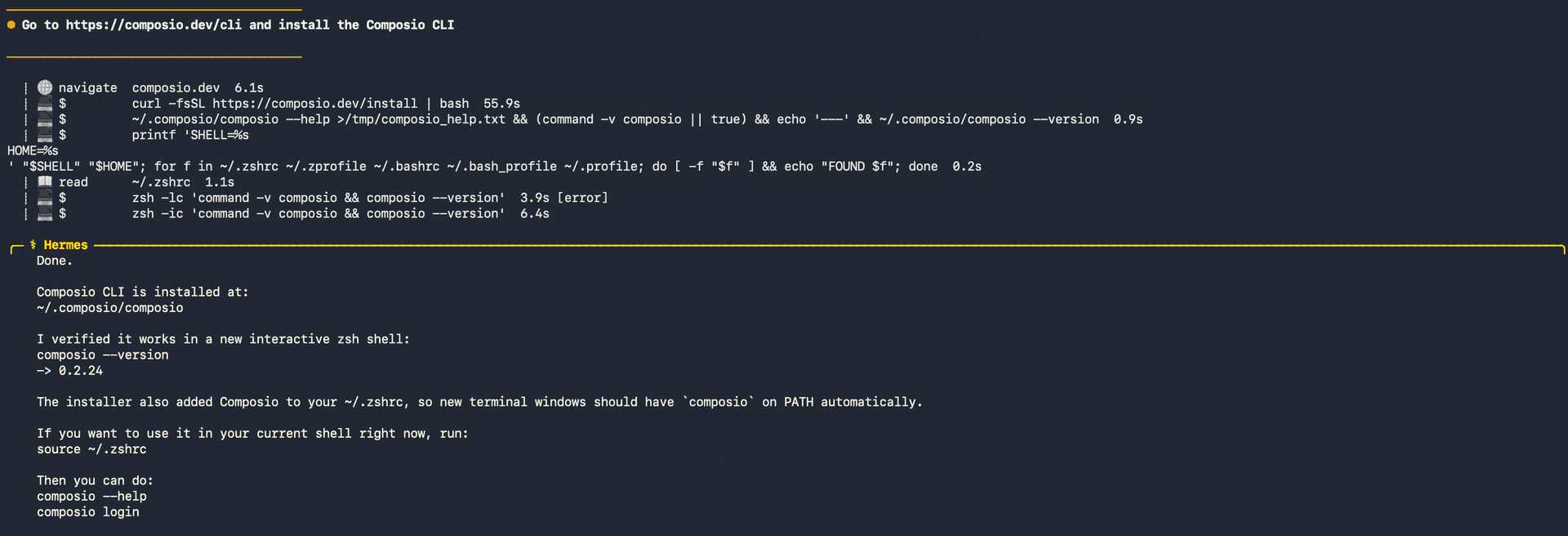
Run the install script directly, or paste https://composio.dev/hermes into your Hermes chat box to have it installed for you.

bash
curl -fsSL https://composio.dev/install | bash
Hermes authenticating with Composio

2. Authenticate

Once the CLI is installed, ask Hermes to authenticate with Composio.

3. Connect to Check Cherry

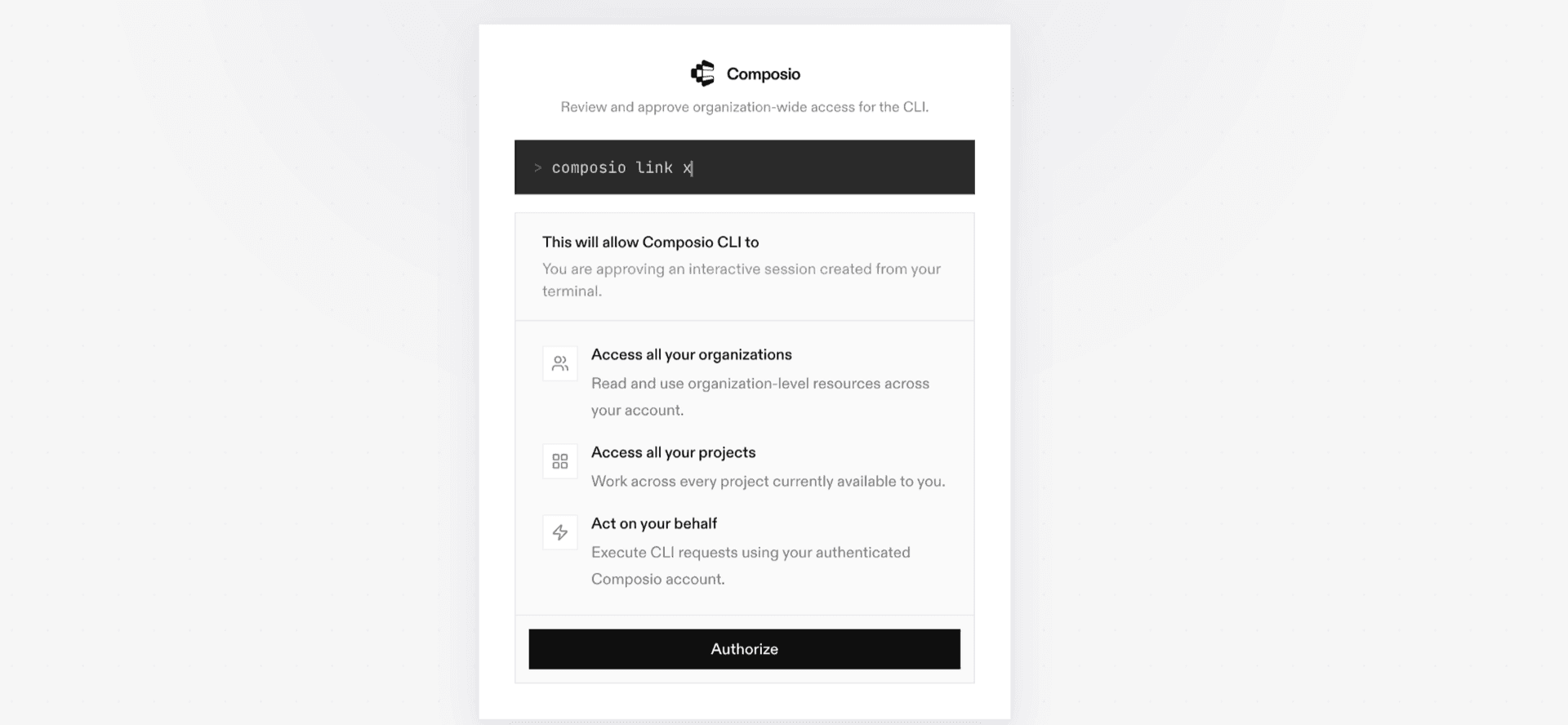
Ask your agent to connect to Check Cherry, or simply request any Check Cherry-related task. Hermes will prompt you to authenticate and authorize access.

4. Done. You're all set with a new Check Cherry connection.


Using Composio Connect MCP

1. Get your MCP URL and API Key

Go to dashboard.composio.dev and copy your Connect MCP URL and API key.

Copy MCP URL and API key from Composio dashboard

2. Open the Hermes config file

bash
nano ~/.hermes/config.yaml

3. Add the Composio Connect MCP server

bash
mcp_servers:
  composio:
    url: "https://connect.composio.dev/mcp"
    headers:
      x-consumer-api-key: "YOUR_COMPOSIO_API_KEY"
    connect_timeout: 60
    timeout: 180

Save with Ctrl + O, Enter, then exit with Ctrl + X.

4. Restart your Hermes agent

Once restarted, ask your agent to connect to Check Cherry or request any Check Cherry-related task. It will prompt you to authenticate and authorize access.

5. Done!

What is the Check Cherry MCP server, and what's possible with it?

The Check Cherry MCP server is an implementation of the Model Context Protocol that connects your AI agent and assistants like Claude, Cursor, etc directly to your Check Cherry account. It provides structured and secure access to your leads, bookings, appointments, offerings, payments, expenses, questionnaires, and business reports, so your agent can manage schedules, review clients and events, track finances, update questionnaires, and check availability on your behalf.

  • Lead and booking management: Have your agent search leads, review proposals and confirmed bookings, and find package bookings by event date.
  • Appointments and availability: Let the agent check package availability, find open appointment times, schedule staff appointments for guests, and remove appointments from the active calendar.
  • Payments and expense tracking: Direct your agent to review event payments and refunds, record business expenses, update expense details, classify costs, or remove outdated expense records.
  • Questionnaire coordination: Instruct your agent to attach questionnaire templates to bookings, review questions and responses, update answers, and remove questionnaires when needed.
  • Offerings and business reporting: Have your agent review services, package groups, packages, and add-ons, then retrieve reports covering bookings, leads, payments, proposals, or projected revenue.

Way Forward

With Check Cherry connected, Hermes can now act on your behalf whenever it detects a relevant task or you ask it to.

From here, you can extend Hermes further:

  • Connect more apps: Calendar, Slack, Notion, Linear, and hundreds of others are available through the same Composio Connect setup. Each new integration compounds what Hermes can do for you.
  • Build workflows across tools: Once multiple apps are connected, Hermes can chain actions together — turn an email into a calendar invite, a Slack message into a Linear ticket, or a meeting note into a follow-up draft.
  • Let it learn your patterns: The more you use Hermes, the better it gets at anticipating how you'd handle recurring tasks. Give it feedback on drafts and decisions, and it will adapt.

If you run into trouble or want to share what you've built, join the community or check out the Docs for deeper configuration options.

TOOLS

Supported Tools

Every Check Cherry action and event your agent gets out of the box.

Attach Questionnaire

Copy a questionnaire template onto a proposal or confirmed booking.

Check Event Availability

Check whether a package can be booked on one date or across a date range.

Create Appointment

Create a staff appointment for a guest at a specific date, time, and duration; this changes the business calendar.

Create Expense

Record a business expense with its payment date, amount, reference, payee, and optional event and category links.

Delete Appointment

Soft-delete one appointment so it no longer appears in active business calendar records; Check Cherry retains the deleted record.

Delete Expense

Soft-delete one business expense so it no longer appears in listings; Check Cherry retains the record for record-keeping.

Get Appointment

Return full guest, scheduling, and assignment details for one appointment.

Get Event

Return full details for one proposal or confirmed booking by event ID.

Get Lead

Return full details for one lead by ID.

Get Questionnaire

Return one questionnaire with its questions, current answers, and completion state.

Get Report

Return one time-bucketed Check Cherry business report for bookings, leads, payments, proposals, or projected revenue.

List Appointments

Search staff appointments by date, assignee, brand, cancellation state, time direction, or text, returning one page.

List Appointment Slots

Return available appointment times for one staff member and appointment calendar on a selected date.

List Event Bookings

List package bookings attached to events within an optional event-date range, returning one page and a continuation cursor.

List Events

Search proposals and confirmed bookings with date, status, client, staff, payment, and workflow filters, returning one page.

List Expense Categories

Return the expense categories available for classifying business expenses.

List Expenses

Search business expenses by event, category, payment date, text, and sort order, returning one page.

List Leads

Search leads by exact email or contact and event text, returning one page of CRM records.

List Offerings

List one Check Cherry catalog resource: services, package groups, packages, or add-ons.

List Payments

List event payment records, including received payments and refunds, by event or payment date; returns one page with monetary values in Check Cherry's original representations.

List Questionnaires

List questionnaires attached to one event booking.

List Questionnaire Templates

Return questionnaire templates that can be attached to an event booking.

Remove Questionnaire

Detach one questionnaire from its event booking and delete its collected answers; the source questionnaire template is unchanged.

Update Expense

Change selected fields on an existing business expense.

Update Questionnaire Answers

Update answers on a standard questionnaire.

FAQ

Frequently asked questions

With a standalone Check Cherry MCP server, the agents and LLMs can only access a fixed set of Check Cherry tools tied to that server. However, with the Composio Tool Router, agents can dynamically load tools from Check Cherry and many other apps based on the task at hand, all through a single MCP endpoint.

Yes, you can. Hermes fully supports MCP integration. You get structured tool calling, message history handling, and model orchestration while Tool Router takes care of discovering and serving the right Check Cherry tools.

Yes, absolutely. You can configure which Check Cherry scopes and actions are allowed when connecting your account to Composio. You can also bring your own OAuth credentials or API configuration so you keep full control over what the agent can do.

All sensitive data such as tokens, keys, and configuration is fully encrypted at rest and in transit. Composio is SOC 2 Type 2 compliant and follows strict security practices so your Check Cherry data and credentials are handled as safely as possible.

Start with Check Cherry.It takes 30 seconds.

Managed auth, hosted MCP servers, and every Check Cherry tool your agent needs.Free to start.

Start building